Alex Jackson · October 23, 2026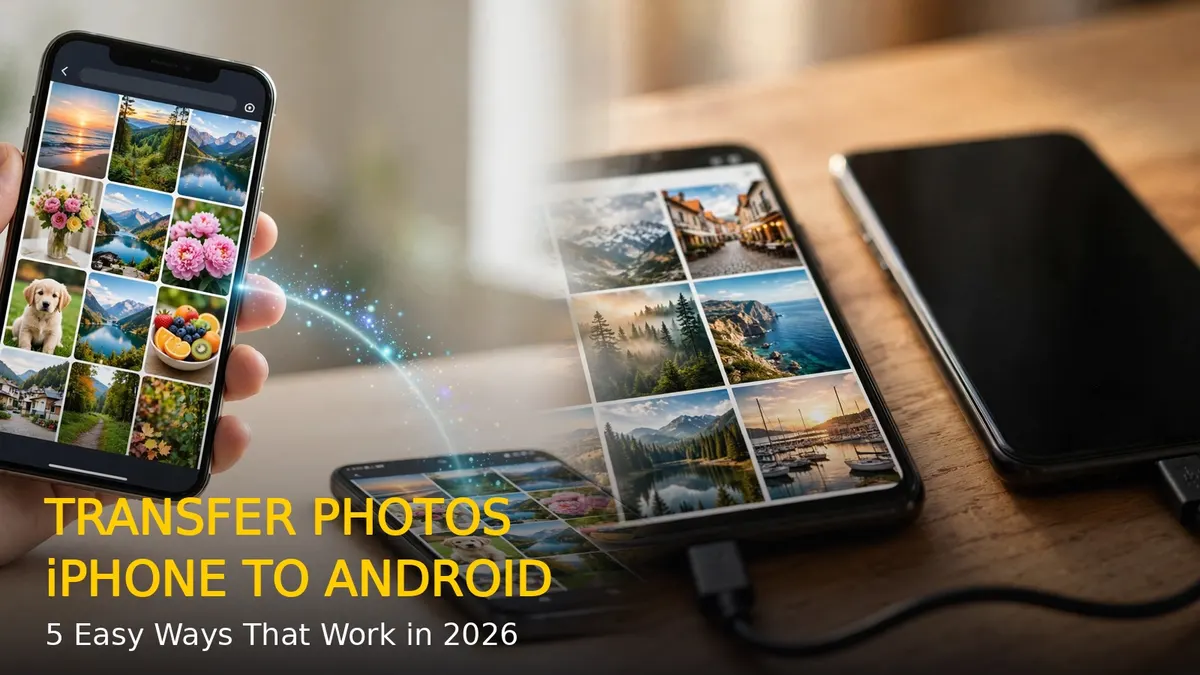
Switching from an iPhone to an Android phone is exciting — until you realize your entire photo library is stuck in Apple’s world. The good news: moving your photos in 2026 is easier than ever, thanks to Apple’s built-in transfer tool and a few reliable alternatives. Here are 5 easy ways to transfer photos from iPhone to Android without losing a single memory.
Method 1: Use Apple’s Built-in “Transfer to Android” Tool (Easiest)
If your iPhone runs iOS 26.3 or later, Apple now includes a one-tap transfer tool made exactly for this.
Steps:
- Update your iPhone to the latest iOS version.
- On your iPhone, go to Settings > General > Transfer or Reset Phone > Transfer to Android.
- Place your iPhone and Android phone next to each other and tap Continue on the iPhone.
- On your Android phone, open the camera app and scan the QR code shown on the iPhone.
- Select Photos (along with contacts, messages, and apps if you want), then tap Continue.
- Keep both phones close and connected until the transfer finishes.
This method moves your photos at full quality and also transfers messages, contacts, call history, apps, and even your eSIM. It is the fastest option if both phones are with you.
Method 2: Transfer Photos with Google Photos
Google Photos works on both iPhone and Android, making it a perfect bridge between the two.
Steps:
- Install Google Photos on your iPhone and sign in with your Google account.
- Tap your profile icon, go to Photos settings > Backup, and turn backup on.
- Wait for your entire library to upload (use Wi-Fi; large libraries can take a few hours).
- On your Android phone, sign in to the same Google account and open Google Photos — all your photos will appear.
This method is ideal if you want your photos backed up in the cloud anyway, and it keeps syncing new photos automatically after the switch.
Method 3: Move Photos with a USB Cable and Computer
For full-resolution originals and maximum control, the old-school cable method still works best.
Steps:
- Connect your iPhone to a PC or Mac with a cable and copy your photos to a folder on the computer.
- Disconnect the iPhone and connect your Android phone via USB.
- On the Android phone, choose File Transfer mode from the USB notification.
- Drag the photos into the DCIM folder on the Android phone.
This method keeps original quality and metadata, and it works even without internet access.
Method 4: Samsung Smart Switch (for Galaxy Phones)
Moving to a Samsung Galaxy? Smart Switch is purpose-built for iPhone switchers.
Steps:
- Connect your Galaxy phone to the iPhone with a USB-C to Lightning cable and tap Trust on the iPhone.
- Open Smart Switch on the Galaxy phone and select the photos (plus contacts and messages) you want to move.
- Tap Transfer and keep both phones connected until it finishes.
- No cable? Choose the iCloud option in Smart Switch, sign in to your iCloud account, and import your photos wirelessly.
Method 5: Send Photos Wirelessly with Send Anywhere
If you only need to move selected albums — not the whole library — a peer-to-peer app is the quickest.
Steps:
- Install Send Anywhere on both phones and connect them to the same Wi-Fi.
- On the iPhone, select the photos and tap Send to get a 6-digit key.
- On the Android phone, tap Receive and enter the key.
Transfers happen directly over your local network, so even large 4K videos move fast without using mobile data.
Tips Before You Wipe Your iPhone
- Verify first: Compare photo counts on both phones and open a few old photos and videos on the Android before erasing anything.
- HEIC photos: iPhones save photos in HEIC format; Android 10 and newer open them natively, so this is rarely an issue anymore.
- Turn off iMessage: Before switching, go to Settings > Messages and turn off iMessage so texts from iPhone friends reach your new number.
- Keep a backup: Keep your iCloud or Google Photos backup until you are 100% sure everything arrived safely.
Final Words
For most people, Apple’s built-in Transfer to Android tool is the simplest way to move photos from iPhone to Android in 2026. If you prefer the cloud, Google Photos is unbeatable; for full control, use the USB cable method. Pick the one that fits your situation, verify your photos arrived, and enjoy your new Android phone.
RELATED STORIES