Alex Jackson · October 12, 2026
Your iPhone has dozens of hidden features that Apple never told you about. These tricks will help you type faster, save battery, take better photos, and get more done. Here are 10 of the best iPhone tricks every user should know.
1. Back Tap – Double/Triple Tap the Back
Go to Settings > Accessibility > Touch > Back Tap. You can set double-tap or triple-tap on the back of your iPhone to take a screenshot, open Control Center, lock the screen, or launch any shortcut. It works even with a case on.
2. Type Faster with Text Replacement
Go to Settings > General > Keyboard > Text Replacement. Add shortcuts like “omw” for “On my way!” or your email address. This saves tons of typing time every day.
3. Scan Documents with Notes
Open the Notes app, create a new note, tap the camera icon, and select Scan Documents. Your iPhone becomes a portable scanner with automatic edge detection and PDF export.
4. Hide Photos Without Deleting
Select photos in the Photos app, tap Share, and choose Hide. They move to a Hidden album that requires Face ID to open. Perfect for sensitive screenshots or documents.
5. One-Handed Keyboard
Hold the globe/emoji icon on the keyboard and select the left or right keyboard layout. The keyboard shifts to one side so you can type comfortably with one thumb on larger iPhones.
6. Measure Anything with Measure App
Open the pre-installed Measure app and point your camera at any object. It uses AR to measure length, and can even detect rectangles automatically. Surprisingly accurate for quick measurements.
7. Silence Unknown Callers
Go to Settings > Phone > Silence Unknown Callers and turn it on. Calls from numbers not in your contacts go straight to voicemail. This alone blocks most spam calls.
8. Custom Vibrations for Contacts
Go to any contact, tap Edit, then Ringtone > Vibration > Create New Vibration. Tap out a custom pattern. You’ll know who’s calling without looking at your phone.
9. Drag and Drop Between Apps
On newer iPhones, you can long-press to pick up text, photos, or files, then switch apps with another finger and drop them. It works between Messages, Notes, Mail, Files, and many third-party apps.
10. Battery Percentage in Status Bar
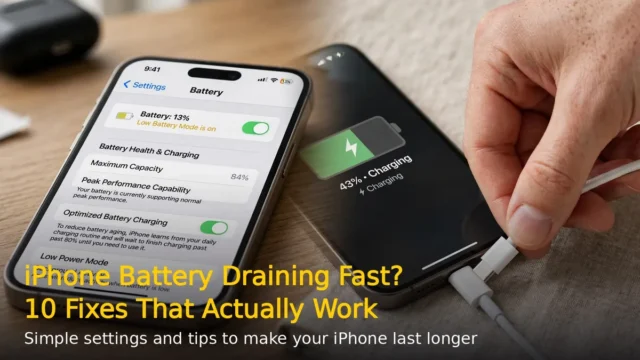
Go to Settings > Battery and turn on Battery Percentage. You’ll see the exact percentage inside the battery icon. Also enable Low Power Mode from Control Center when you need extra hours.
These tricks work on iPhones running iOS 16 or newer. Try them out and see which ones become part of your daily routine.
RELATED STORIES