Alex Jackson · October 18, 2026
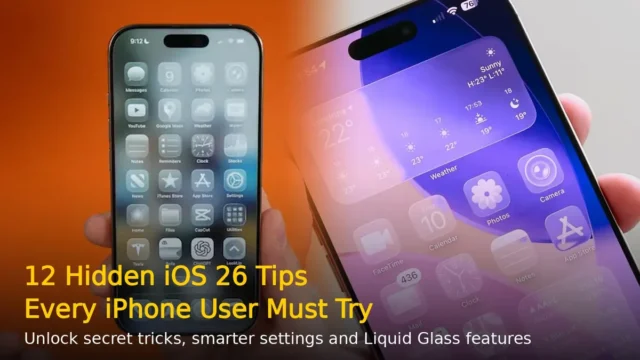
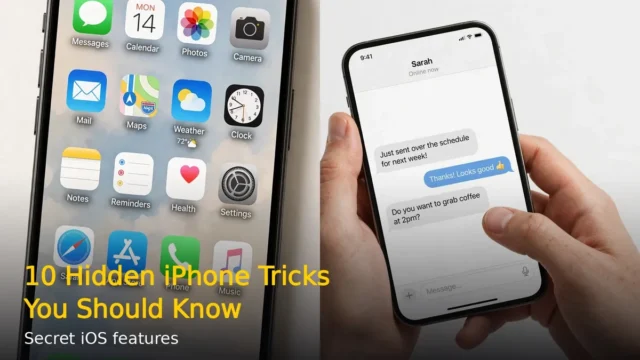
Your iPhone can do far more than you think. Even if you have used an iPhone for years, iOS 26 hides dozens of clever tricks deep inside Settings, the keyboard, the camera and Messages. Here are 12 hidden iPhone features you are probably not using yet.
1. Back Tap: secret buttons on the back of your iPhone
Go to Settings > Accessibility > Touch > Back Tap. Here you can set a double-tap or triple-tap on the back of your iPhone to trigger actions like taking a screenshot, opening the camera or turning on the flashlight. It is one of the fastest shortcuts on any phone, and most iPhone owners have never enabled it.
2. Turn the keyboard into a trackpad
Editing text on a small screen is painful, until you long-press the spacebar. The keyboard instantly turns into a trackpad, letting you slide your finger to move the cursor exactly where you want it. Lift your finger and the keyboard returns to normal.
3. Copy text from any photo with Live Text
Open the Camera app, point it at any text, and tap the Live Text icon in the corner. You can copy phone numbers, addresses and paragraphs straight from the real world, translate them, or call a number directly. It also works on any photo already saved in your library.
4. Lock your Hidden photos album with Face ID
In the Photos app, swipe a photo up and tap Hide to move it to the Hidden album. In iOS 26, the Hidden and Recently Deleted albums stay locked behind Face ID or Touch ID, so nobody borrowing your phone can stumble across them.
5. Schedule messages with Send Later
In Messages, type your text, then long-press the send button and choose Send Later. Pick a date and time, and your iPhone will send the message automatically. Perfect for birthday wishes you do not want to forget at midnight.
6. Take full-page screenshots as PDFs
After taking a screenshot, tap its thumbnail, then choose Full Page at the top. Your iPhone saves the entire webpage, chat or document as a PDF instead of just what was on screen. Save it to Files or share it instantly.
7. Remove backgrounds from photos in one tap
Open any photo with a clear subject, long-press the person or object, and iOS lifts it cleanly off the background. You can copy it, share it as a sticker in Messages, or paste it into Notes. No editing app needed.
8. Custom vibrations for each contact
Open a contact, tap Edit, then Ringtone > Vibration > Create New Vibration. Tap out your own pattern and assign it to that person. You will know who is calling without ever looking at the screen.
9. Safari Tab Groups for a tidy browser
If your Safari tabs are a mess, group them. Tap the tabs button, long-press any tab and choose Move to Tab Group. You can keep separate groups for work, shopping and travel, each with its own start page.
10. Share contacts and files by touching phones
Hold the top of your iPhone near another iPhone to trigger NameDrop, which shares your contact card instantly. The same gesture in Photos shares pictures via AirDrop. It works in seconds with no setup.
11. Haptic feedback while typing
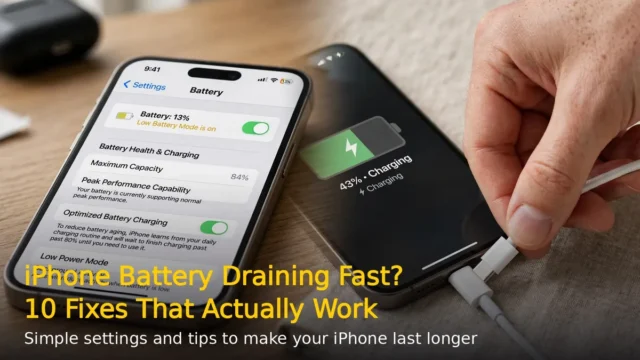
Go to Settings > Sounds & Haptics > Keyboard Feedback and turn on Haptic. Every keypress gives a tiny vibration, making typing feel far more precise. Note that it can use slightly more battery, so try it for a day first.
12. Safety Check for shared data
Under Settings > Privacy & Security > Safety Check, you can instantly review and revoke everything you have ever shared with other people and apps: location, photos, calendars and more. Run it once a year to keep your digital life private.
Most of these features have been sitting on your iPhone for years, quietly waiting to be found. Try enabling two or three today, and your iPhone will feel like a brand-new phone.
RELATED STORIES