Alex Jackson · November 5, 2026
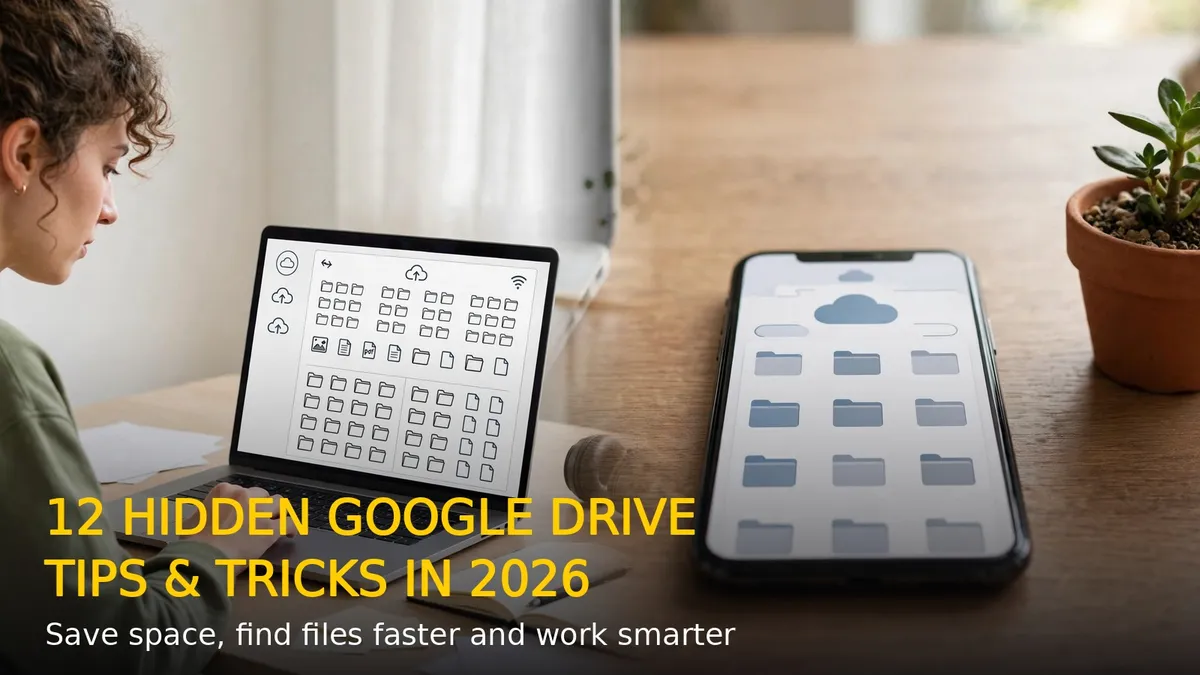
Google Drive is where most of us keep our documents, photos and important files, but most people only use a small part of what it can do. Beyond uploading and sharing, Drive hides powerful search tools, offline access, version history and storage-saving tricks that can save you hours every week. Here are 12 hidden Google Drive tips and tricks you should start using in 2026.
1. Search Like a Pro with Advanced Filters
Instead of scrolling through endless folders, click the search bar and use the filter icon. You can search by file type, owner, date modified and even words inside a document. Try searching for “type:pdf” or “type:spreadsheet” to instantly narrow down results, and use “owner:me” to see only your own files.
2. Use Keyboard Shortcuts to Work Faster
Drive has its own set of shortcuts that most users never discover. Press Shift + T to create a new document, Shift + P for a presentation, or Shift + F to create a new folder. Press “/” to jump straight to the search box, and “?” anytime to see the full list of shortcuts.
3. Turn On Offline Access Before You Need It
Travelling or heading somewhere with patchy internet? Open Drive settings and enable offline access. Your recent Docs, Sheets and Slides will be available without a connection, and any changes you make will sync automatically once you are back online.
4. Find and Delete the Files Eating Your Storage
Running out of your free 15 GB? Click “Storage” in the left sidebar to see your biggest files sorted by size. Large videos, old backups and forgotten attachments are usually the culprits. Delete what you do not need, then empty the trash to actually free the space.
5. Recover Old Versions of Any File
Accidentally overwrote an important document? Right-click any file and choose “Manage versions” or open a Google Doc and go to File > Version history. You can view, restore or download any earlier version, so a mistake is never permanent.
6. Add a Star and Use Priority for Quick Access
Stop digging through folders for the files you open every day. Right-click a file and choose “Add to Starred” to pin it to the Starred section. The Priority page also surfaces files that Drive thinks you need next, based on your recent activity.
7. Create Shortcuts Instead of Duplicate Copies
When the same file belongs in two folders, do not make a copy. Right-click the file, choose “Organize > Add shortcut” and place a shortcut in the second folder. Any edit to the original updates everywhere, and you save storage at the same time.
8. Scan Documents Straight from Your Phone
The Drive app on Android and iPhone has a built-in scanner. Tap the “+” button, choose “Scan”, and point your camera at a receipt, note or form. Drive crops, enhances and saves it as a PDF, so you can ditch the paper and the extra scanning app.
9. Share Safely with Expiry Dates and Link Controls
Sharing a file with “Anyone with the link” is convenient but risky. Click the share settings to set an expiry date, disable downloads and printing, or switch the link off entirely when you are done. For sensitive files, always share with specific people instead of a public link.
10. Use the Preview Pane Without Opening Files
Need to check what is inside a file without opening it? Select the file and press “P” or click the preview icon at the top. You can read documents, watch videos and zoom into images right inside Drive, which is much faster than opening each file one by one.
11. Colour-Code Your Folders
Right-click any folder and choose “Organize > Change color” to give it a colour. Use red for urgent projects, green for finished work and blue for personal files. It sounds simple, but colour-coded folders make a crowded Drive instantly scannable at a glance.
12. Back Up Your Phone Photos and Folders Automatically
On your computer, install Google Drive for Desktop and choose which folders to sync and back up. On your phone, turn on photo backup in the Drive app settings. Your pictures and important folders stay protected even if your device is lost or damaged.
Final Thoughts
Google Drive is far more than a place to dump files. With smart search, offline access, version history and a few organisation habits, it becomes a genuinely fast and reliable workspace. Try two or three of these tips today, and you will wonder how you managed without them.
RELATED STORIES