Alex Jackson · October 12, 2026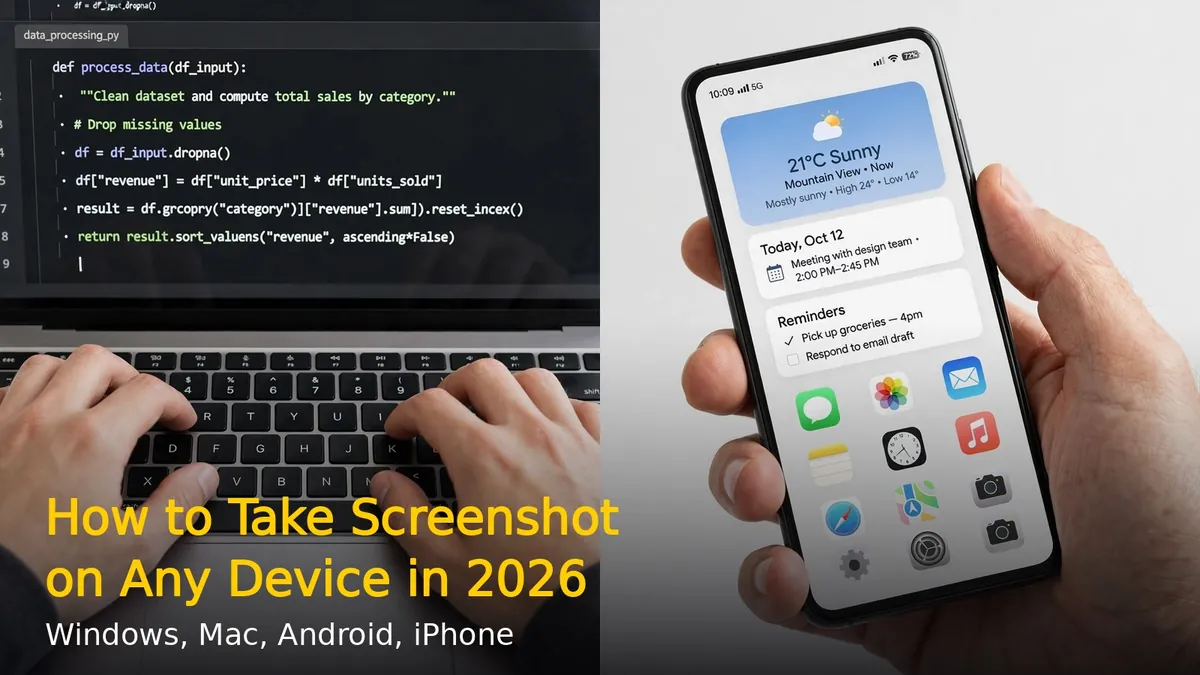
Taking a screenshot is one of the most useful skills on any device. Whether you want to save a receipt, share a funny message, or document an error, here’s how to capture your screen on Windows, Mac, Android, and iPhone.
How to Screenshot on Windows 11
Method 1: Snipping Tool (Recommended)
Press Windows + Shift + S. Your screen will dim and a toolbar appears at the top. Choose rectangle, freeform, window, or fullscreen mode. Select the area you want. The screenshot is copied to clipboard and saved in Notifications – click it to edit and save.
Method 2: Print Screen Key
Press the PrtScn key to capture the entire screen to clipboard. Press Alt + PrtScn to capture only the active window. Then paste (Ctrl + V) into Paint, Word, or any app.
Method 3: Windows + Print Screen
Press Windows + PrtScn together. The screen flashes briefly and the screenshot is automatically saved to Pictures > Screenshots folder. No pasting needed.
How to Screenshot on Mac
Press Shift + Command + 3 to capture the entire screen. The screenshot appears as a thumbnail in the corner – click it to edit, or find it on your desktop.
Press Shift + Command + 4 to capture a selected area. Your cursor becomes a crosshair – drag to select. Press Spacebar after Shift+Command+4 to capture a specific window instead.
Press Shift + Command + 5 to open the screenshot toolbar with options for screen recording, timed captures, and save locations.
How to Screenshot on Android
On most Android phones, press the Power button + Volume Down button together for 1 second. The screen flashes and a preview appears.
On Samsung phones, you can also swipe your palm across the screen (enable in Settings > Advanced features > Motions and gestures > Palm swipe to capture).
After capturing, tap the preview to edit, share, or scroll-capture long pages.
How to Screenshot on iPhone
On iPhones with Face ID, press the Side button + Volume Up button together. On iPhones with Home button, press Home + Side/Power button together.
Tap the thumbnail in the bottom-left corner to crop, annotate with Markup, or share immediately. Screenshots save to Photos > Screenshots album.
For full-page screenshots in Safari, take a screenshot, tap the thumbnail, select “Full Page” at the top, and save as PDF.
Bonus: Scrolling Screenshots
On Android and iPhone, after taking a screenshot, look for a “Scroll” or “Full page” option in the preview. This captures entire web pages or long chats in one image – no more stitching multiple screenshots together.
Now you know how to capture your screen on any device. The Windows + Shift + S shortcut alone will save you hours once it becomes muscle memory.
RELATED STORIES