Alex Jackson · October 15, 2026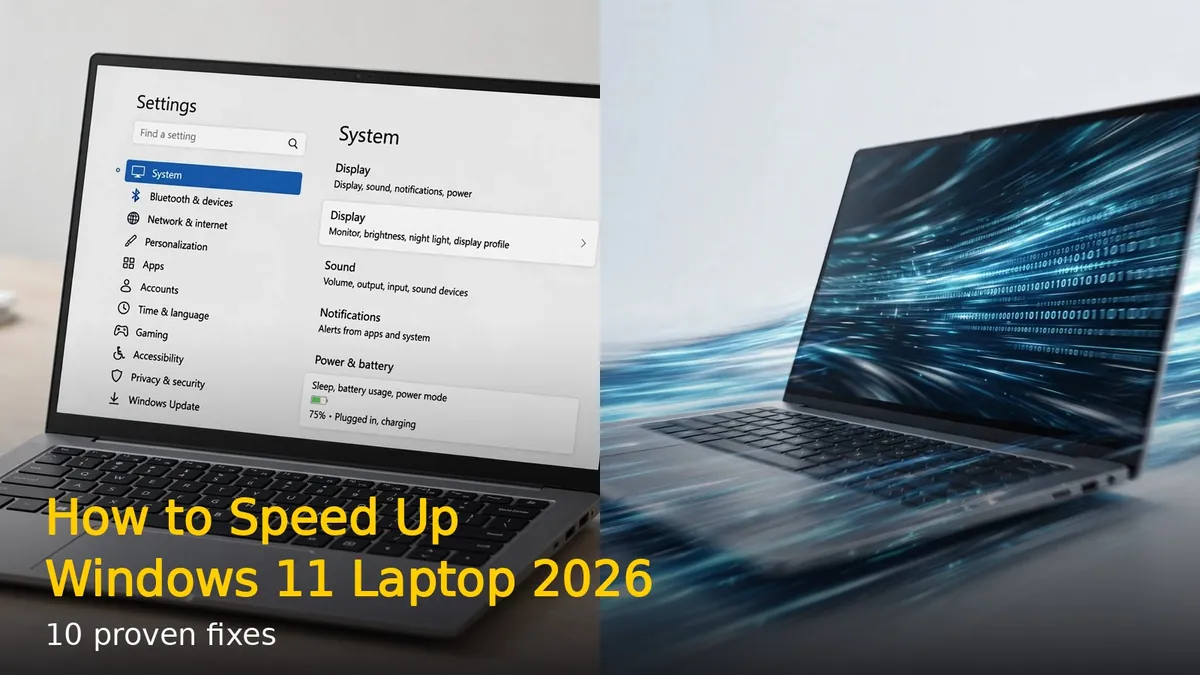
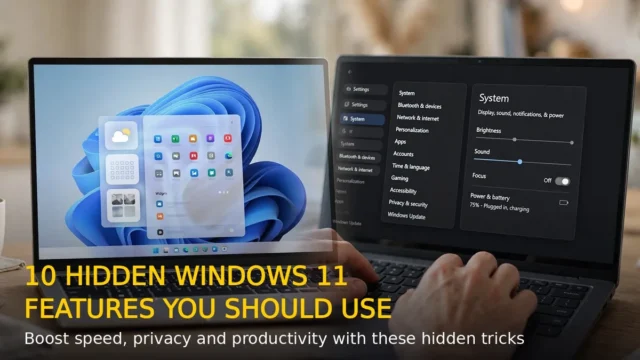
Is your Windows 11 laptop running slow? Don’t rush to buy a new one. These 10 proven fixes can make your laptop feel fast again, and most take just a few minutes.
1. Disable Startup Apps
Too many apps launching at startup is the number one cause of slow boot times. Press Ctrl + Shift + Esc to open Task Manager, go to the Startup tab, and disable everything you don’t need immediately. Keep only antivirus enabled.
2. Turn On Storage Sense
Low disk space slows everything down. Go to Settings > System > Storage and turn on Storage Sense. It automatically deletes temporary files, empties the recycle bin, and cleans up old downloads.
3. Reduce Visual Effects
Those pretty animations cost performance. Search “Adjust the appearance and performance of Windows” in Start, select “Adjust for best performance”, then re-enable only “Smooth edges of screen fonts” for readability.
4. Uninstall Bloatware
Go to Settings > Apps > Installed apps and remove programs you never use. Pay special attention to pre-installed trial software, manufacturer bloatware, and old games.
5. Disable Background Apps
Many apps run in the background eating RAM. Go to Settings > Apps > Installed apps, click the three dots on apps you rarely use, select Advanced options, and set “Background apps permissions” to Never.
6. Run Disk Cleanup
Search “Disk Cleanup” in Start, select your C: drive, and let it scan. Check Temporary files, Recycle Bin, and System files to free up gigabytes of space.
7. Update Windows and Drivers
Outdated software causes slowdowns. Go to Settings > Windows Update and install all pending updates. Then update your graphics and chipset drivers from the manufacturer’s website.
8. Disable Transparency Effects
Go to Settings > Personalization > Colors and turn off Transparency effects. This small change reduces GPU load noticeably on older laptops.
9. Set Power Mode to Best Performance
Click the battery icon in the taskbar and drag the slider to “Best performance” when plugged in. In Settings > System > Power, set Power mode to Best performance.
10. Upgrade to SSD and Add RAM
If your laptop still uses a hard drive, upgrading to an SSD is the single biggest speed boost possible – boot times drop from minutes to seconds. Adding RAM (8GB minimum, 16GB ideal) helps with multitasking.
Final Tip
Run these fixes once every few months to keep your laptop fast. Regular maintenance beats a fresh Windows install.
RELATED STORIES