Alex Jackson · October 16, 2026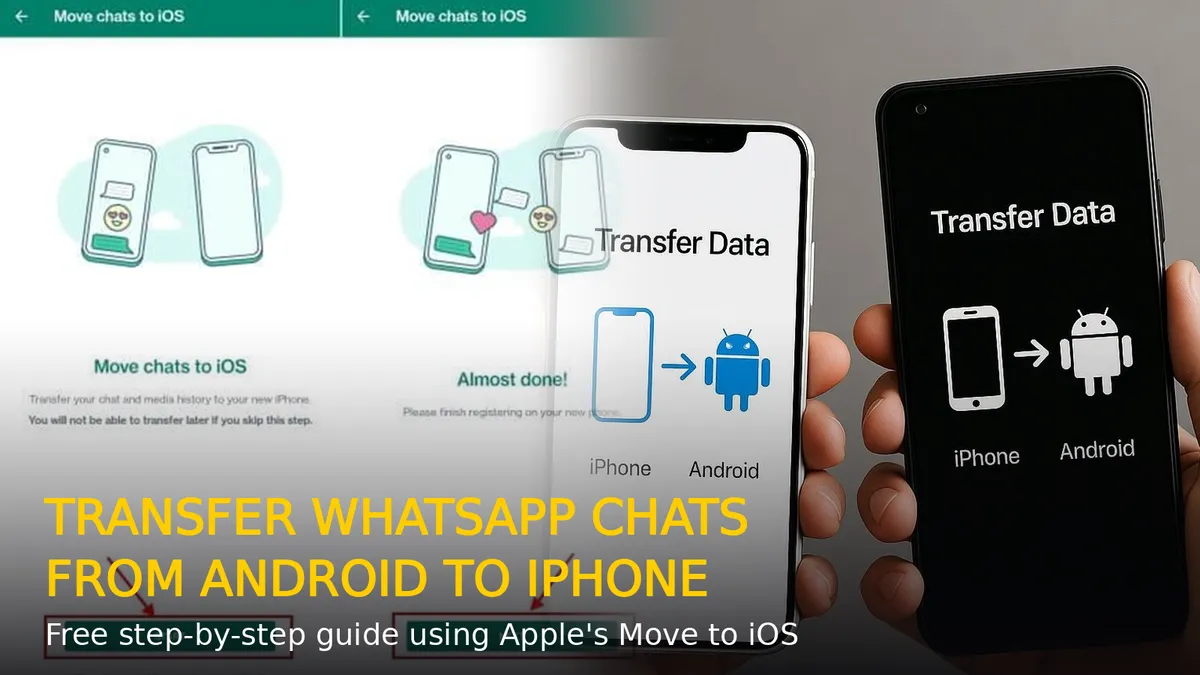
Switching from an Android phone to an iPhone does not mean leaving years of WhatsApp chats behind. Apple and WhatsApp now offer an official, completely free way to move your entire chat history — messages, photos, videos, voice notes and settings — straight to your new iPhone. No paid third-party tools, no PC, no complicated workarounds.
There is one catch you must know first: WhatsApp’s own QR-code “Transfer Chats” feature works only between two phones on the same platform (Android to Android, or iPhone to iPhone). For Android to iPhone, the official route is Apple’s Move to iOS app, used during iPhone setup. Here is the complete step-by-step guide.
What You Need Before You Start
- A new or factory-reset iPhone — Move to iOS only appears during iPhone setup. If your iPhone is already set up, you must erase it (Settings > General > Transfer or Reset iPhone > Erase All Content and Settings) after backing up your data.
- Android phone running Android 5.0 or later, with the latest WhatsApp installed.
- iPhone running iOS 15.5 or later.
- The same phone number on both phones.
- Both phones on the same Wi-Fi network, plugged into power, with enough free storage on the iPhone.
- The free Move to iOS app installed from the Google Play Store on your Android phone.
Method 1: Transfer WhatsApp with Move to iOS (Official, Free)
This is the officially supported method. Follow the steps in order — skipping ahead breaks the transfer.
Step 1: Begin iPhone setup and reach the Apps & Data screen
Turn on your new (or freshly erased) iPhone and go through the initial setup until you reach the “Apps & Data” screen. Tap “Move Data from Android”.
Step 2: Pair the phones with the Move to iOS app
On your Android phone, open the Move to iOS app and agree to the terms. On the iPhone, tap Continue — a code appears. Enter this code on the Android phone, then connect to the temporary Wi-Fi network the iPhone creates.
Step 3: Select WhatsApp on the transfer screen
When the “Transfer Data” screen appears, choose WhatsApp from the list of apps and tap Continue.
Step 4: Export your chats from WhatsApp on Android
WhatsApp now opens on your Android phone. Tap Start, confirm the export, and keep WhatsApp open until it finishes. The migration package is prepared and sent to the iPhone.
Step 5: Finish iPhone setup and import your chats
Complete the rest of the iPhone setup, then download WhatsApp from the App Store. Open it, verify your phone number, and tap Start (or “Import”) when prompted. Your chats, groups, media and settings will appear — this can take several minutes if you have a large chat history.
What Gets Transferred — and What Doesn’t
Transferred: account info, profile photo, individual and group chats, full chat history, photos, videos, documents, voice messages and app settings.
Not transferred: call history, display name, and payment-related data. Your existing iPhone apps are also untouched — only WhatsApp data comes across.
Method 2: Already Set Up Your iPhone? Here Are Your Options
If your iPhone is already running and you don’t want to erase it, you have two practical choices:
- Erase and redo setup — back up your iPhone, erase it, then follow Method 1. This is the only way to use the free official migration for WhatsApp data.
- Use iPhone as a linked companion device — a temporary workaround: on the iPhone’s WhatsApp, choose “Link as Companion Device” and scan the QR code with your Android phone under Linked Devices. You can read and reply to chats on the iPhone, but the data isn’t truly migrated.
Troubleshooting Tips
- Transfer stuck or slow? Keep both phones unlocked, close to each other, and on the same Wi-Fi network. Large media-heavy chats can take 30+ minutes.
- “Move chats to iOS” screen not showing? Make sure WhatsApp is updated on Android, and that you’re doing this during iPhone setup — the option won’t appear after setup is complete.
- Chats missing after import? Don’t wipe the old phone until you’ve verified everything. Reinstall WhatsApp on the iPhone, verify the number again, and watch for the import prompt.
FAQs
Can I transfer WhatsApp from Android to iPhone for free?
Yes. Apple’s Move to iOS app is free and is the official way to migrate WhatsApp chats, media and settings from Android to iPhone. You don’t need any paid software.
Does Move to iOS transfer WhatsApp media and voice notes?
Yes — photos, videos, documents and voice messages all move across, along with your chat history and settings. Call history and payment data do not transfer.
Can I transfer WhatsApp chats to iPhone without resetting it?
Not with the official migration. Move to iOS only runs during iPhone setup, so an already-set-up iPhone must be erased first. The only no-reset option is linking the iPhone as a companion device, which gives temporary access rather than a true migration.
Bottom line: The free, official Move to iOS method takes about 15 minutes of your attention plus waiting time — and your entire WhatsApp life lands on the iPhone intact. Just remember the golden rule: don’t erase your Android phone until you’ve confirmed every chat made the trip.
RELATED STORIES