Alex Jackson · October 17, 2026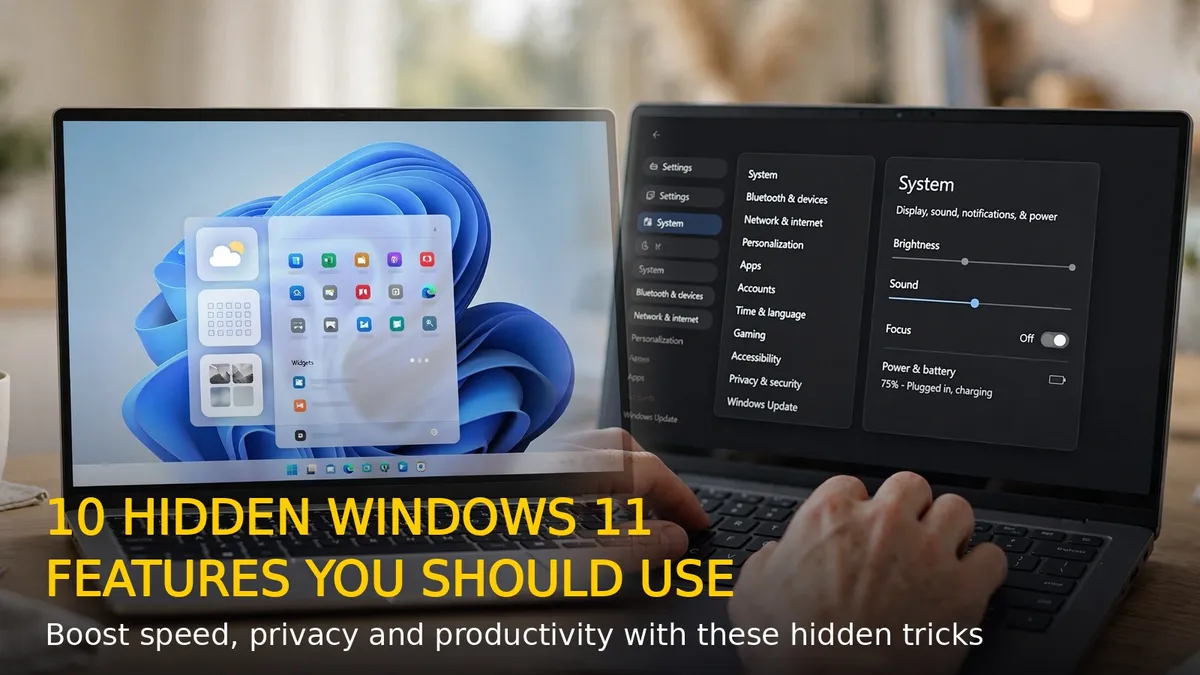
Windows 11 has been out for years, yet most users still only scratch the surface of what it can do. Beyond the centered taskbar and rounded corners, Microsoft has tucked away dozens of genuinely useful features that most people never stumble across. Here are 10 hidden Windows 11 features that will make your PC faster, more private and far more productive.
Productivity Features You Are Probably Missing
1. Snap Layouts (Win + Z)
Hover over any window’s maximize button or press Win + Z to see Snap Layouts — ready-made grids that tile your open windows into halves, thirds or quarters of the screen. It is the fastest way to run a browser, a document and a video call side by side without any manual resizing. Once you start using it, you will wonder how you lived with overlapping windows.
2. Virtual Desktops With Their Own Wallpapers
Press Win + Tab and create multiple desktops: one for work, one for personal stuff, one for gaming. Right-click any desktop in Task view to give it its own wallpaper, so you can tell them apart at a glance. Your apps stay exactly where you left them, and switching takes a split second.
3. The Secret Start Menu (Win + X)
Right-click the Start button — or press Win + X — to open the power-user menu: Device Manager, Disk Management, Terminal, Task Manager, Settings and more, all one click away. It is the quickest shortcut to the tools Windows buries deep in menus.
4. Clipboard History (Win + V)
Windows 11 remembers far more than your last copy. Press Win + V to open clipboard history and pick from everything you copied recently — text, images, even screenshots. Pin the items you reuse daily and they survive a restart. Turn it on once in Settings if it asks, and never lose a copied link again.
Speed and Storage Boosters
5. God Mode Folder
Create a new folder on your desktop, name it exactly GodMode.{ED7BA470-8E54-465E-825C-99712043E01C} and watch it transform into a master control panel listing more than 200 settings in one searchable place. No more hunting through Settings pages for that one buried toggle.
6. Storage Sense Auto Cleanup
Head to Settings > System > Storage and turn on Storage Sense. Windows will automatically clear temporary files, empty the recycle bin on a schedule and clean up unused OneDrive files. It is a set-and-forget trick that quietly reclaims gigabytes over time.
7. Efficiency Mode in Task Manager
Open Task Manager, right-click any heavy background process and choose Efficiency mode. Windows throttles its CPU usage so the apps you are actually using get more power — perfect for squeezing extra battery life out of a laptop or calming a noisy fan.
Privacy and Comfort Tweaks
8. Focus Sessions and Do Not Disturb
Click the clock in the taskbar and start a Focus session: notifications go silent, a timer keeps you on task, and Do Not Disturb turns on automatically. Pair it with Settings > System > Notifications to schedule quiet hours every evening.
9. Title Bar Window Shake (Aero Shake)
Grab a window’s title bar and shake it — every other open window minimizes instantly, leaving only the one you are holding. Shake again to bring them all back. Enable it under Settings > System > Multitasking if it is off. It is oddly satisfying and genuinely useful when your desktop gets cluttered.
10. PowerToys: Microsoft’s Free Power-User Toolkit
PowerToys is a free download from Microsoft that adds pro-level tools to Windows 11: FancyZones for custom window grids, PowerRename for batch-renaming hundreds of files, Text Extractor to copy text from any image on screen, and a system-wide color picker. Install it once and Windows feels twice as capable.
The Bottom Line
These ten features take minutes to enable but pay off every single day. Start with Snap Layouts, clipboard history and Storage Sense — the trio most users say they wish they had discovered sooner — and work your way down the list. Your Windows 11 PC is more powerful than it looks.
RELATED STORIES