Alex Jackson · October 18, 2026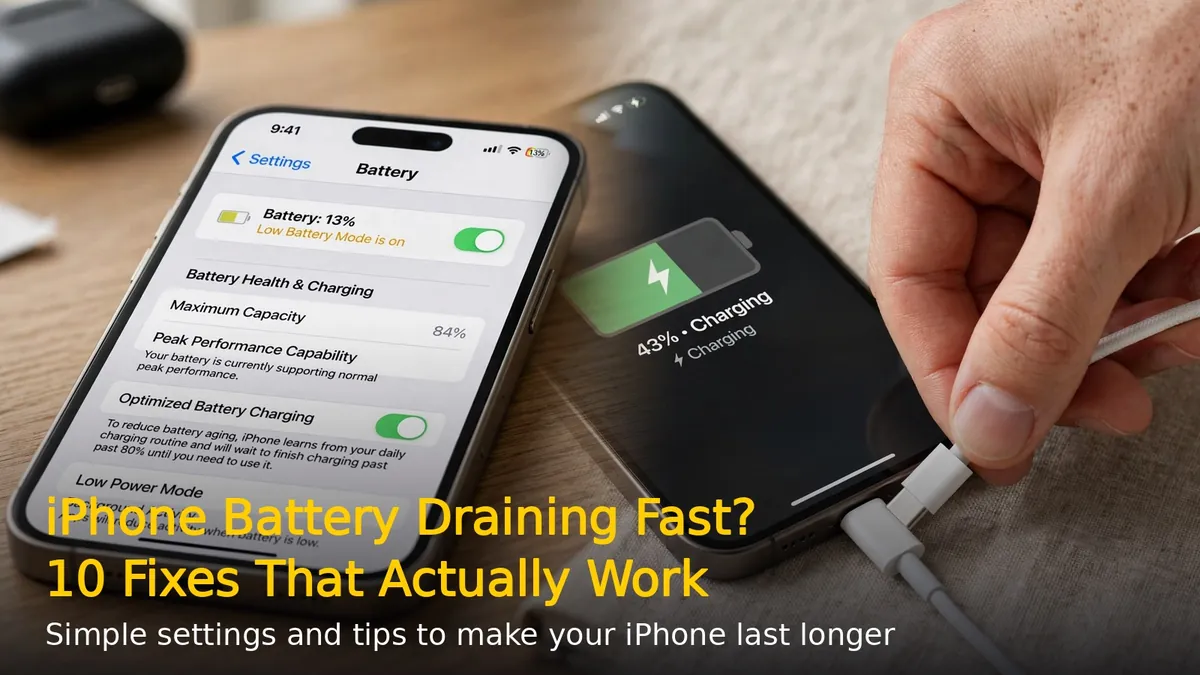
Nothing is more frustrating than an iPhone that dies by mid-afternoon. If your iPhone battery is draining fast, the good news is that most battery problems come from settings — not from a broken phone. In 2026, with iOS 26 running on everything from the iPhone 11 to the latest models, these 10 proven fixes will help you find the culprit and make your battery last much longer.
Step 1: Find Out What’s Draining Your Battery
Before changing anything, check which apps are eating your battery. Go to Settings > Battery and scroll down to see battery usage by app over the last 24 hours and 10 days. If one app is using a huge share of battery in the background, you’ve found your biggest problem. Now apply the fixes below.
10 Fixes That Actually Work
1. Turn On Low Power Mode
The fastest fix. Go to Settings > Battery and enable Low Power Mode. It reduces background activity, mail fetch, and visual effects. Your battery icon turns yellow — that’s normal. Keep it on during long days.
2. Limit Background App Refresh
Many apps refresh content in the background and quietly drain your battery. Go to Settings > General > Background App Refresh and turn it off entirely, or disable it for apps you rarely use. This single change can add hours of standby time.
3. Cut Back Location Services
GPS is a major battery drainer. Go to Settings > Privacy & Security > Location Services and change apps from Always to While Using or Never. Keep Precise Location on only for maps and delivery apps.
4. Reduce Screen Brightness and Timeouts
The display is the biggest power consumer on any iPhone. Turn on Auto-Brightness in Settings > Accessibility > Display & Text Size, set Auto-Lock to 30 seconds in Settings > Display & Brightness, and turn off Always On Display if your model supports it.
5. Switch 5G to 5G Auto
5G speeds up battery drain, especially in weak-signal areas. Go to Settings > Cellular > Cellular Data Options > Voice & Data and select 5G Auto instead of 5G On. Your iPhone will use 5G only when it actually helps.
6. Turn Off Unnecessary Notifications
Every notification wakes your screen and burns battery. Go to Settings > Notifications and disable notifications for apps that don’t need them — especially social media and shopping apps.
7. Update to the Latest iOS Version
Apple regularly fixes battery-draining bugs in iOS updates. Go to Settings > General > Software Update and install the latest version. If your battery started draining right after an update, give it 48 hours — iOS re-indexes files in the background after major updates.
8. Turn Off Raise to Wake
If your iPhone keeps lighting up in your pocket or on a desk, disable Raise to Wake in Settings > Display & Brightness. You’ll stop wasting power on accidental screen wakes.
9. Check Battery Health
Batteries wear out. Go to Settings > Battery > Battery Health & Charging and check Maximum Capacity. If it’s below 80%, your iPhone can’t hold a full charge anymore — no setting will fix that. Consider an official Apple battery replacement.
10. Restart — and Reset Settings as a Last Resort
A simple restart clears stuck background processes. If the drain continues, try Settings > General > Transfer or Reset iPhone > Reset > Reset All Settings. This resets settings without deleting your photos or apps.
When to Replace Your iPhone Battery
If you’ve tried everything above and your battery health is under 80% — or your iPhone shuts down unexpectedly — it’s time for a new battery. An official Apple battery replacement costs much less than a new phone and can add 2-3 more years of life to your iPhone.
Bottom line: Most fast battery drain on iPhone is caused by settings, not hardware. Start with Low Power Mode, Background App Refresh, and Location Services — and check your battery health before spending money. Your iPhone should easily last a full day again.
RELATED STORIES