Alex Jackson · October 19, 2026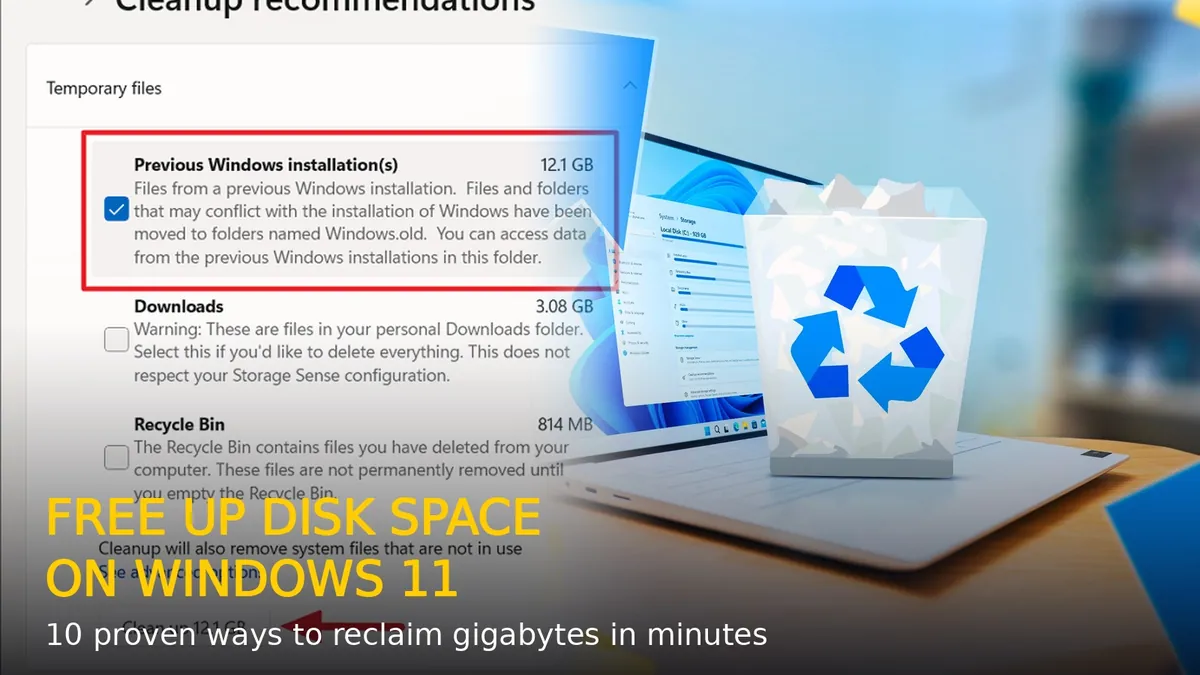
Running out of disk space on your Windows 11 PC? A full drive slows down updates, makes apps lag, and can even stop Windows from working properly. The good news is that you can usually reclaim several gigabytes in just a few minutes without deleting anything important. Here are 10 proven ways to free up disk space on Windows 11.
1. Use Storage Sense to clean up automatically
Storage Sense is Windows 11’s built-in automatic cleaner. It deletes temporary files, empties the Recycle Bin on a schedule, and removes files from the Downloads folder you haven’t opened.
Steps:
- Open Settings > System > Storage.
- Turn on Storage Sense.
- Click Storage Sense to configure when it runs — choose “Every week” for the best balance.
- Set “Delete files in my recycle bin if they have been there for over 30 days”.
2. Check Cleanup recommendations
Windows 11 shows exactly what’s eating your storage and lets you remove it in one click.
Steps:
- Go to Settings > System > Storage.
- Click Cleanup recommendations.
- Expand Temporary files — check boxes for items like “Previous Windows installation(s)” (often 10–25 GB after a feature update).
- Click Clean up to remove them.
The Windows.old folder alone can free up over 20 GB, so this is the biggest single win for most users.
3. Uninstall apps you don’t use
Bloated apps and pre-installed games eat surprising amounts of space.
Steps:
- Open Settings > Apps > Installed apps.
- Sort by Size to find the biggest offenders.
- Click the three dots next to an app you don’t need and choose Uninstall.
4. Run the classic Disk Cleanup tool
The old Disk Cleanup utility still finds junk that Storage Sense misses, including Windows Update cleanup files.
Steps:
- Press Win + S, type Disk Cleanup, and open it.
- Select your C: drive and click OK.
- Click Clean up system files, select the drive again.
- Check everything you want gone (Temporary files, Thumbnails, Delivery Optimization Files, Windows Update Cleanup) and click OK.
5. Empty the Recycle Bin
Deleted files sit in the Recycle Bin until you empty it — sometimes gigabytes’ worth.
Steps:
- Right-click the Recycle Bin on your desktop.
- Choose Empty Recycle Bin and confirm.
6. Move files to the cloud or an external drive
Photos, videos, and large downloads don’t have to live on your C: drive.
Steps:
- Open Settings > System > Storage > Advanced storage settings.
- Use Where new content is saved to send new apps, documents, and media to another drive.
- Move your existing large folders (Videos, Pictures) to OneDrive or an external SSD.
7. Delete the Downloads folder junk
Old installers and ZIP files pile up in Downloads. Sort it by size and delete what you don’t need — just double-check nothing important is hiding there before you wipe it.
8. Remove temporary files manually
Steps:
- Press Win + R, type %temp%, and press Enter.
- Select all files (Ctrl + A) and delete them. Skip any files that Windows says are in use.
9. Disable hibernation to free up gigabytes
The hiberfil.sys file can be as large as your RAM. If you never use hibernation, removing it frees that space instantly.
Steps:
- Open Command Prompt as administrator.
- Type
powercfg /hibernate offand press Enter. - To re-enable it later, use
powercfg /hibernate on.
10. Compress large folders with NTFS compression
Windows can compress folders on the fly to save space with minimal performance cost.
Steps:
- Right-click a folder you rarely access and choose Properties.
- Click Advanced under the General tab.
- Check Compress contents to save disk space and click OK twice.
How much space can you expect to free up?
For most users, Cleanup recommendations plus Disk Cleanup and Storage Sense together recover 15–40 GB — often more if a Windows.old folder is still hanging around. Repeat the automated steps monthly, or just leave Storage Sense on and let Windows handle it.
If your drive fills up again quickly, consider upgrading to a larger SSD — storage is cheap, and a bigger drive keeps Windows 11 running fast.
RELATED STORIES