Alex Jackson · October 21, 2026
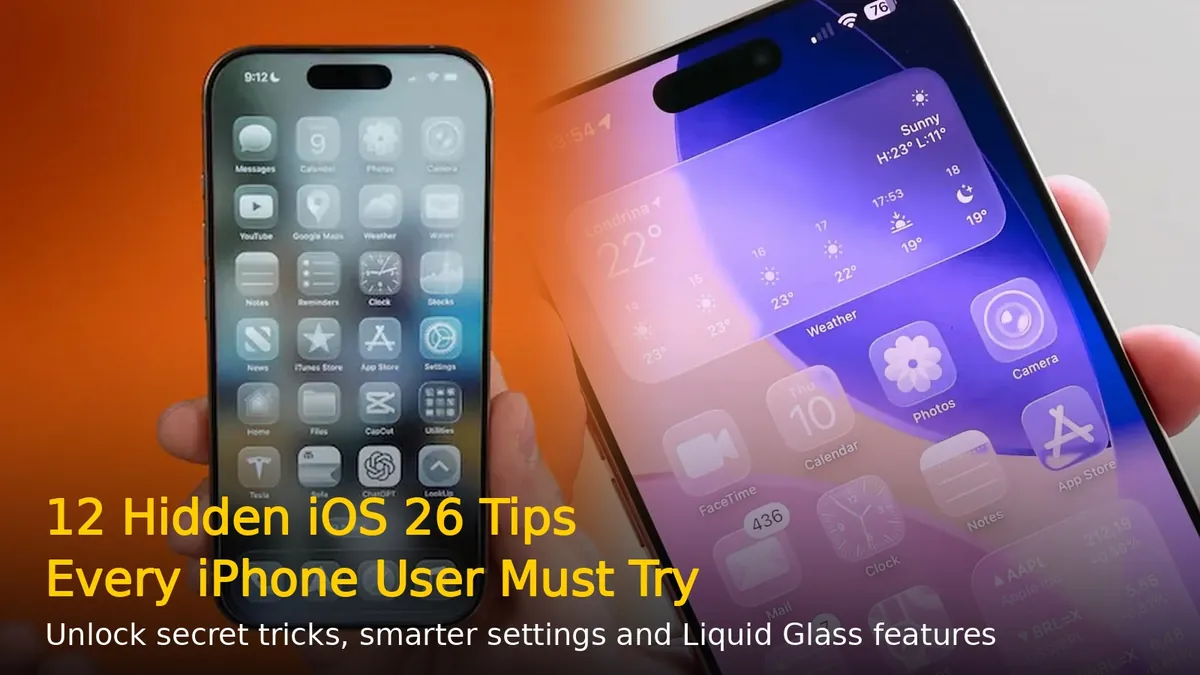
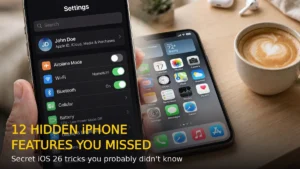
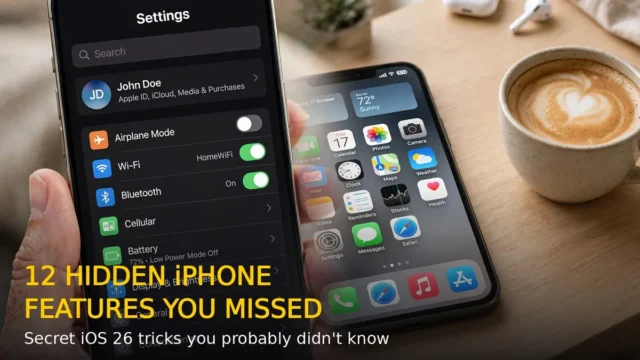
iOS 26 brought Apple’s biggest iPhone redesign in years with the new Liquid Glass interface, but most users are still only scratching the surface. Beyond the flashy new look, Apple packed in dozens of small, genuinely useful tools that never got a mention in the keynote. Here are 12 hidden iOS 26 tips and tricks that will change how you use your iPhone every day.
1. Set a Custom Snooze Duration
The classic 9-minute snooze is finally optional. When you edit any alarm in the Clock app, you can now choose a snooze duration anywhere between 1 and 15 minutes. Pick a shorter snooze if you want a quick power nap, or a longer one if you need a gentler wake-up — no more tapping snooze three times.
2. Turn Any Audio File Into a Ringtone
You no longer need a Mac or GarageBand to make custom ringtones. Record something in Voice Memos (or pick any audio file under 30 seconds), tap the Share button, then choose Use as Ringtone. One tap later, it’s set. You can confirm it worked under Settings > Sounds & Haptics > Ringtone.
3. Tint App Icons to Match Your iPhone’s Color
Long-press an empty area of your Home screen and tap Edit > Customize. Choose Tinted, then tap the small iPhone button under the color sliders. iOS 26 automatically tints all your app icons to match the physical color of your iPhone — a subtle touch that makes the Liquid Glass design look incredible.
4. Copy Only Part of a Text Message
Ever wanted to copy just one sentence from a long message? In iOS 26, tap and hold any message bubble and a new Select option appears next to Copy. Highlight exactly the text you need instead of grabbing the whole bubble.
5. See Exactly When Your iPhone Finishes Charging
Plug in your iPhone and glance at the lock screen — iOS 26 now shows you precisely how long it will take to reach 80% or 100% charge. No more guessing whether you have time for a coffee while your phone charges.
6. Switch On Adaptive Power Mode
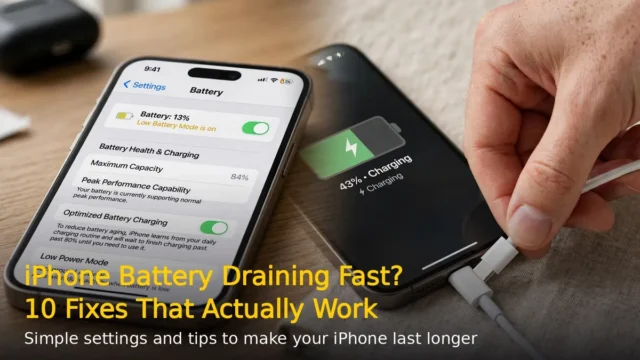
Head to Settings > Battery and try Adaptive Power Mode. It automatically adjusts your iPhone’s performance and power usage based on what you’re doing — saving battery when you’re just streaming music, and boosting performance when you’re gaming or recording video.
7. Use Visual Intelligence on Screenshots
Take a screenshot in iOS 26 and Visual Intelligence kicks in automatically. It can send the image to ChatGPT for answers, search Google for visually similar results, and even suggest actions like adding an event to your calendar. Screenshots just became a research tool.
8. Turn Photos Into 3D Spatial Scenes
Open a photo in the Photos app and look for the spatial scene option — iOS 26 can convert regular photos into immersive 3D experiences. Tilt and move your iPhone to explore depth and perspective, bringing old memories to life in a way flat photos never could.
9. Try the New Background Sounds
iOS 26 adds eight new Background Sounds: Babble, Steam, Airplane, Boat, Bus, Train, Rain On Roof, and Quiet Night. Add the Background Sounds control to Control Center, or find them under Settings > Accessibility > Audio & Visual > Background Sounds. Perfect for focus, sleep, or drowning out a noisy commute.
10. Turn On Reduce Loud Sounds
If you constantly fiddle with the volume because apps and videos have wildly different audio levels, go to Settings > Sounds & Haptics and enable Reduce Loud Sounds. It compresses your speaker’s volume range, making sudden loud sounds softer while keeping quiet details audible.
11. Keep Audio in Your AirPods When CarPlay Connects
AirPods users with CarPlay know the annoyance: the moment you get in the car, your music jumps to the car speakers. Fix it in Settings > General > AirPlay & Continuity by switching on Keep Audio with Headphones. Your music stays put when other devices connect.
12. Double-Tap the Back of Your iPhone
Go to Settings > Accessibility > Touch > Back Tap and assign actions to double or triple taps on the back of your phone. Set double-tap to take a screenshot and triple-tap to toggle the flashlight, and you’ll wonder how you lived without it.
Bonus: AirDrop Now Finishes Over the Internet
Start a big AirDrop transfer, walk out of range, and it keeps going — iOS 26 hands the transfer off to the internet so it completes no matter where you go. Pair that with AirDrop Codes for instant pairing, and file sharing finally feels seamless.
Which of these iOS 26 tips did you not know about? Update to the latest iOS 26 version to make sure every trick above works on your iPhone.
RELATED STORIES